Description:
This detailed tutorial explains how to use Financial Periods and Stored Period Performance in Primavera P6. It’s designed for planners, schedulers, and project control engineers who want to accurately record and report project progress over defined monthly or weekly periods.
You’ll learn how to create, manage, and apply financial periods, how to store performance data, and how to use this information for accurate earned value and cost reporting in Primavera P6 Professional.
By the end of this guide, you’ll be able to confidently generate time-distributed performance data, maintain consistent monthly reports, and meet client and internal reporting standards.
Executive Summary (TL;DR – Quick Overview):
- Understand what Financial Periods are and why they matter in P6.
- Learn how to create and assign periods to projects.
- Store and manage periodic performance data for historical tracking.
- Use stored period performance in activity columns and reports.
- Ensure consistent month-end reporting and earned value analysis.
- Apply professional tips to avoid data mismatch and reporting errors.
Background – Why This Topic Matters:
In large construction or EPC projects, reporting progress monthly or weekly is standard practice. Planners must present accurate earned value, progress curves, and cumulative performance data.
Without financial periods, Primavera P6 overwrites previous actual data during updates. That means last month’s performance can’t be retrieved, a major problem when reviewing trends or generating cost reports.
Financial periods solve this by freezing each reporting period’s actuals. Once stored, they become part of a time-distributed dataset that can be displayed in activity columns or reports, ideal for tracking performance over time and producing consistent monthly dashboards.
Imagine you’re closing progress for February 2025, with stored periods, you can later review that exact month’s earned value, hours, or quantities even after several updates.
Step-by-Step Tutorial:
Step 1: Open and Prepare the Project:
- Launch Primavera P6 Professional 24.12.
- Open your project (File > Open).
- In the Activities window, confirm:
- Project Start and Finish Dates.
- Calendar type (e.g., 5-day or 6-day week).
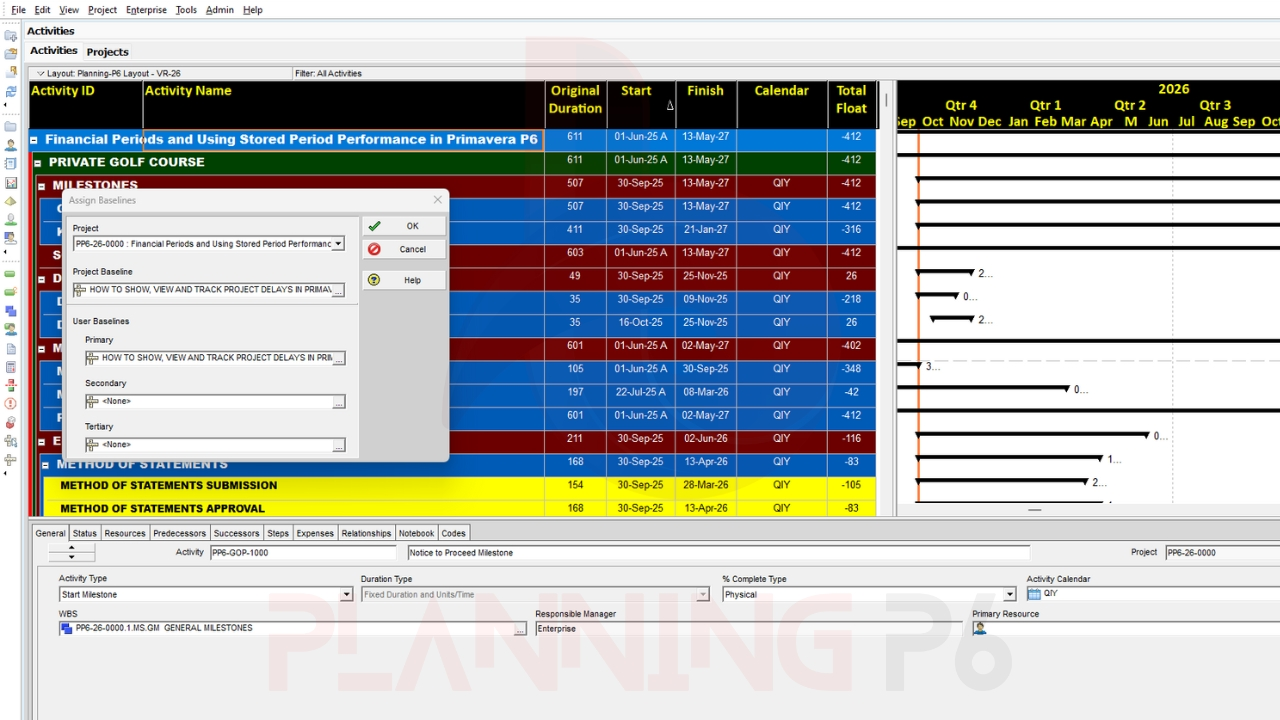
- Baseline assigned (if progress comparison is required).
Before storing period data, ensure all progress updates, resource assignments, and actuals are complete for the current period.
Step 2: Access Financial Periods:
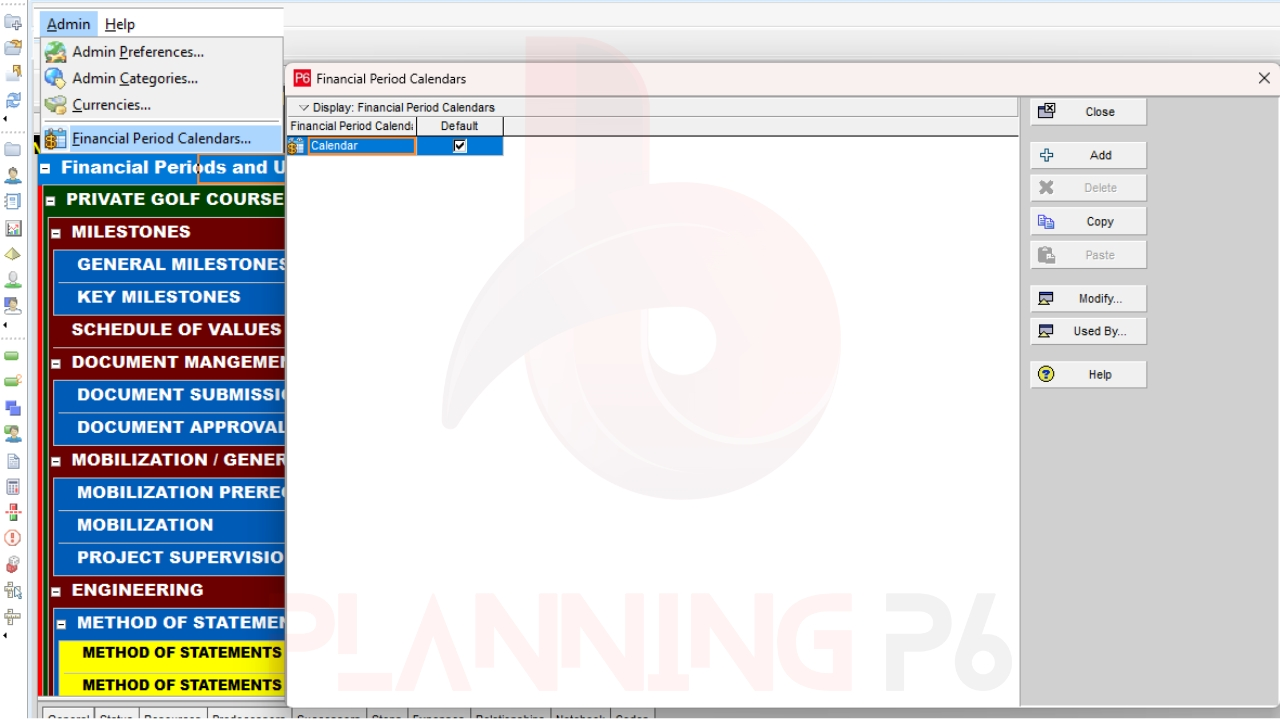
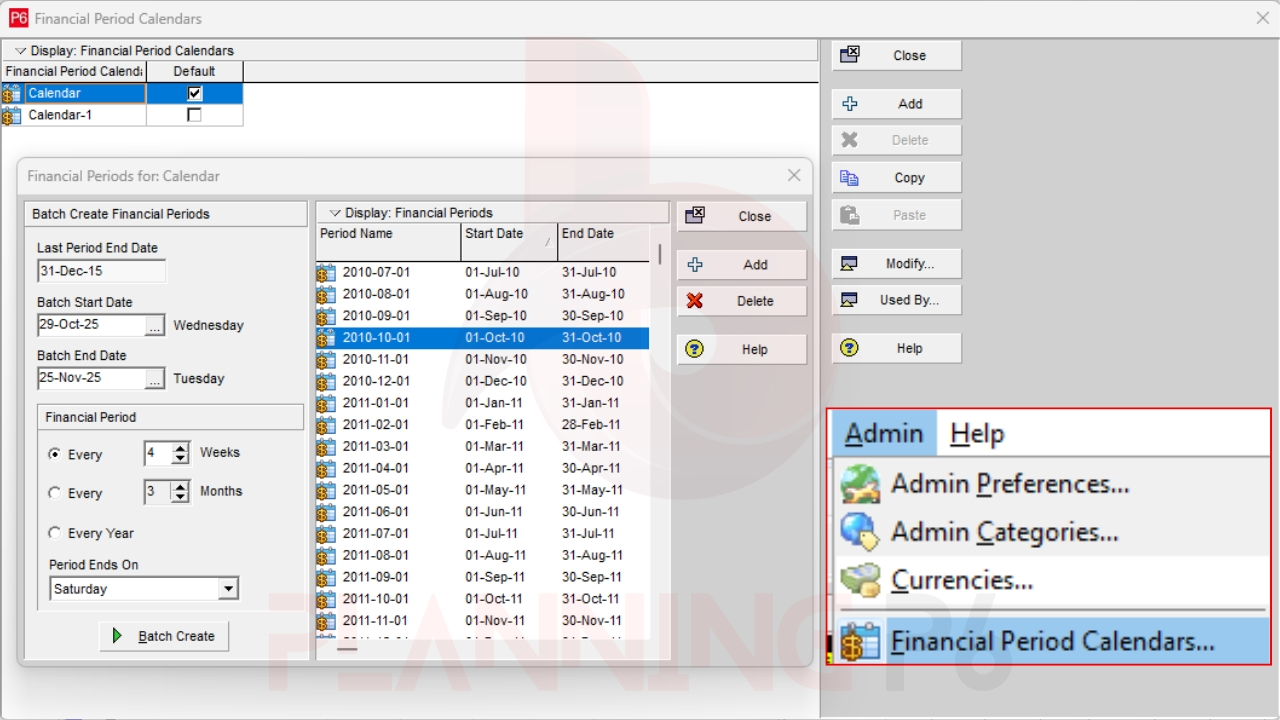
Go to Admin > Financial Periods.
This window lists all predefined financial periods for your P6 database.
If you’ve never used them before, this list will be empty. You’ll create your first set now.
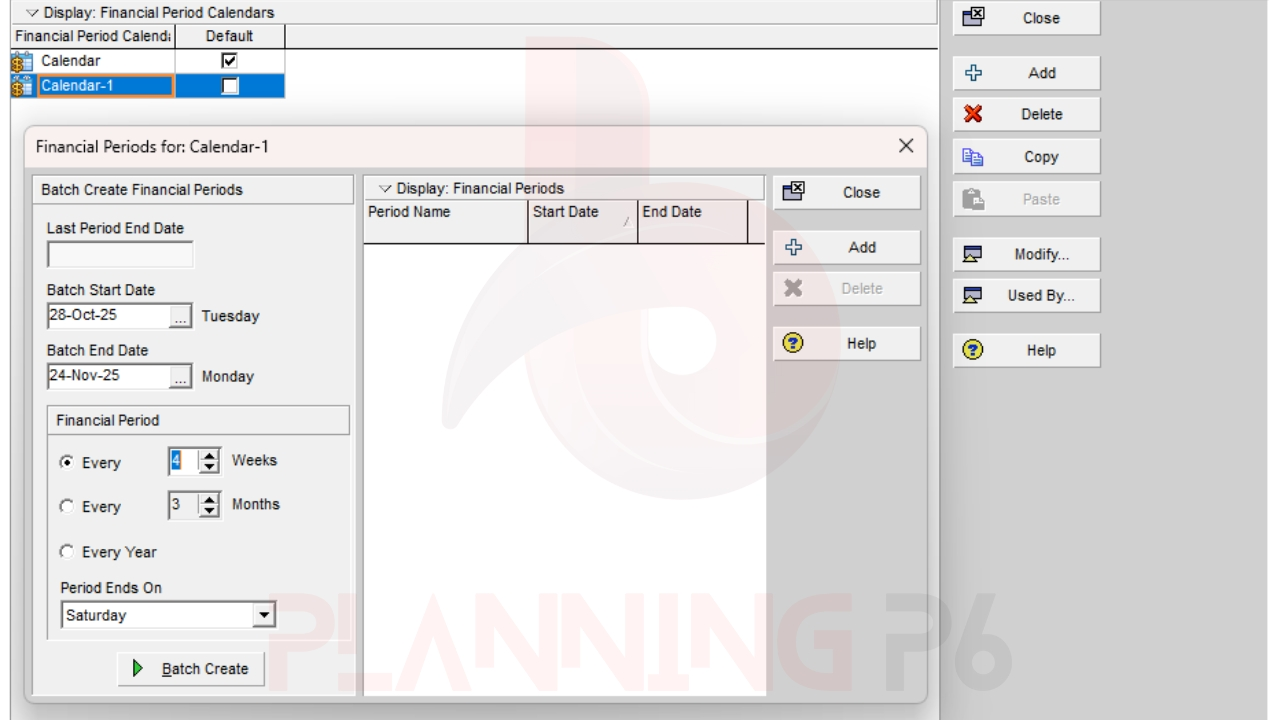
Step 3: Create Financial Period Calendars:
- Click Add to create a new financial period.
- Enter a Start Date and End Date (e.g., 01-Feb-2025 to 28-Feb-2025).
- Give it a clear name such as “Feb-2025”.
Repeat this for all reporting months of your project.
You can use Add Monthly Periods to automate the process (for example, from Jan to Dec 2025).
Always name periods using a consistent format like MMM-YYYY (e.g., Mar-2025). It ensures clarity when filtering stored data later.
Step 4: Assign Financial Periods to Your Project:
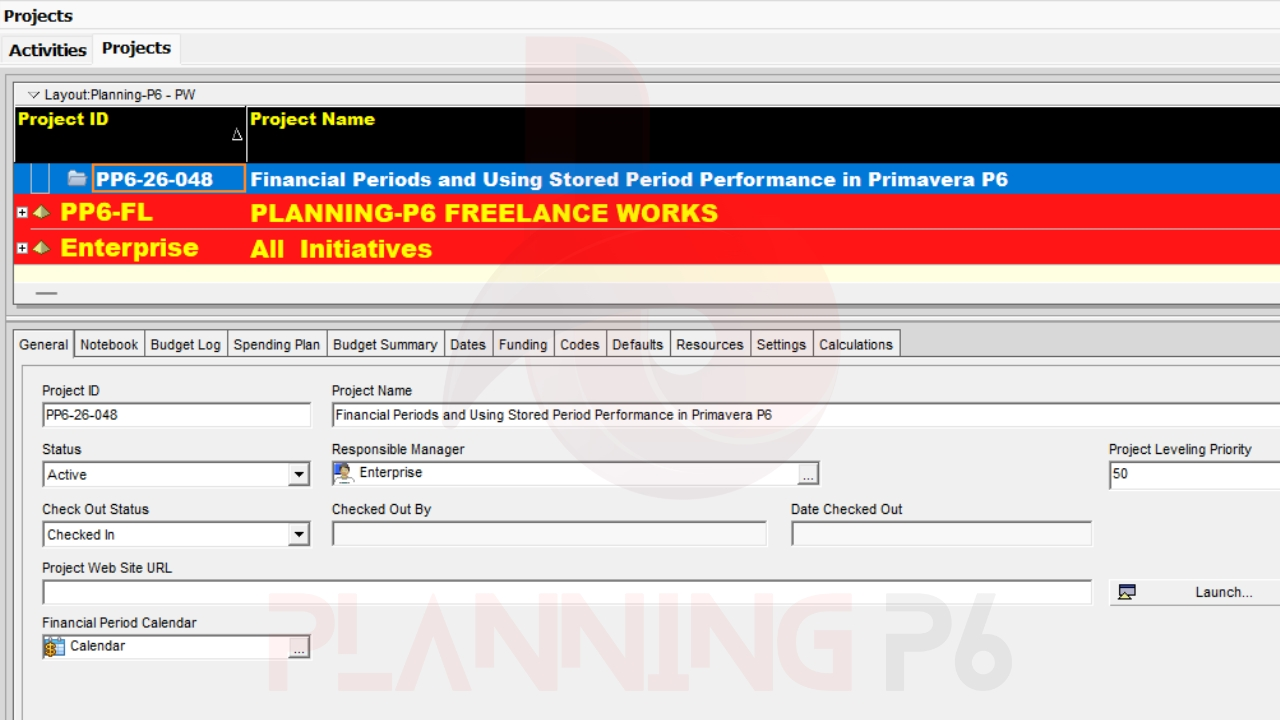
- Go to Projects > Activities.
- Select your project, then open Project Details (General tab).
- Scroll to Financial Period fields.
- Confirm that P6 recognizes your created periods.
Although you don’t directly “assign” periods per project, all projects share the same financial period list globally.
So any stored data will automatically align with these calendar definitions.
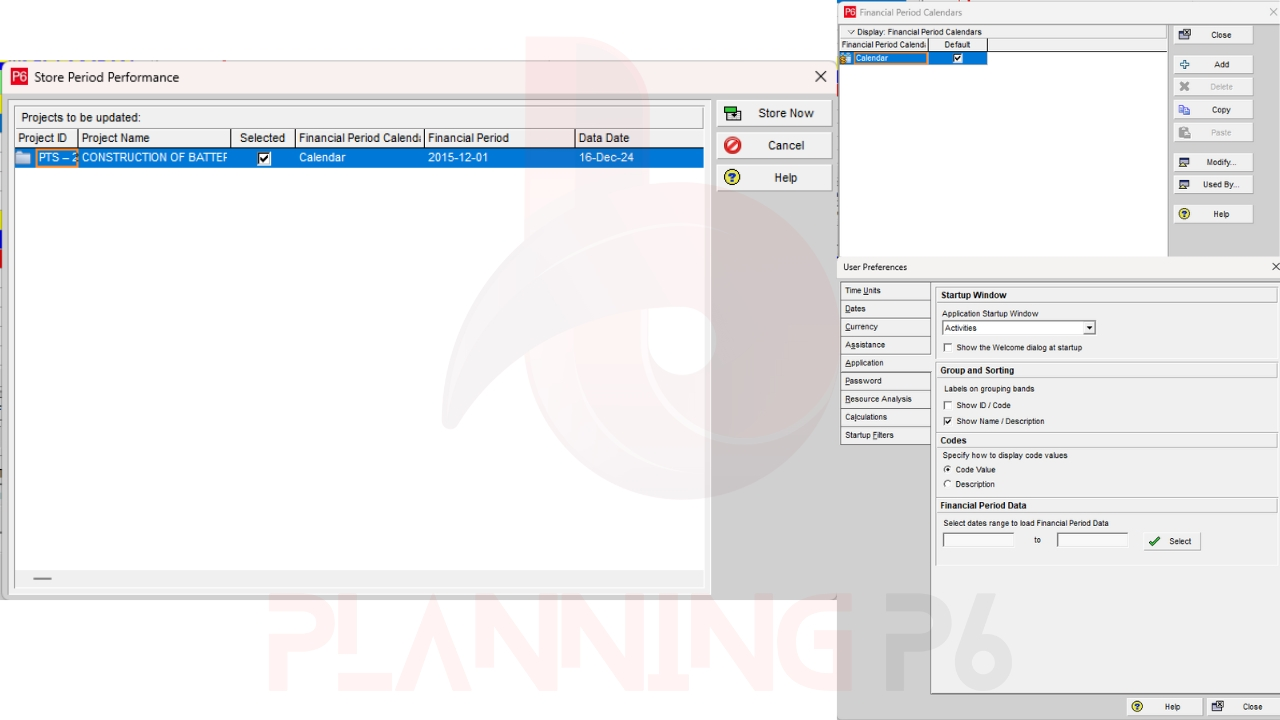
Step 5: Store Period Performance:
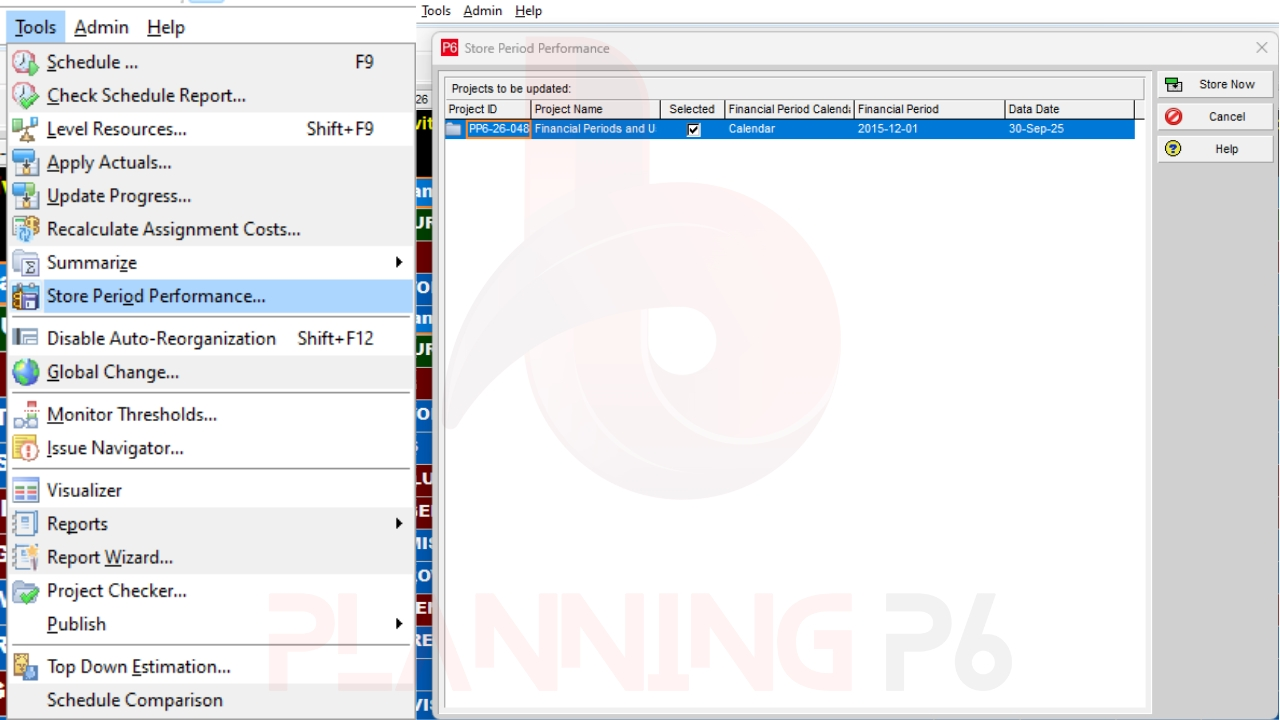
Once you complete a monthly progress update and before starting the next one, store your actuals for that period.
- Open your project.
- Go to Tools > Store Period Performance.
- In the dialog box:
- Select the period you’re closing (e.g., Feb-2025).
- Choose “Store” to save the current actual values.
- P6 locks that data into your database under that specific period.
This ensures that even if you change or overwrite actuals later, historical monthly data remains safe.
Step 6: Viewing Stored Period Data:
To verify stored data:
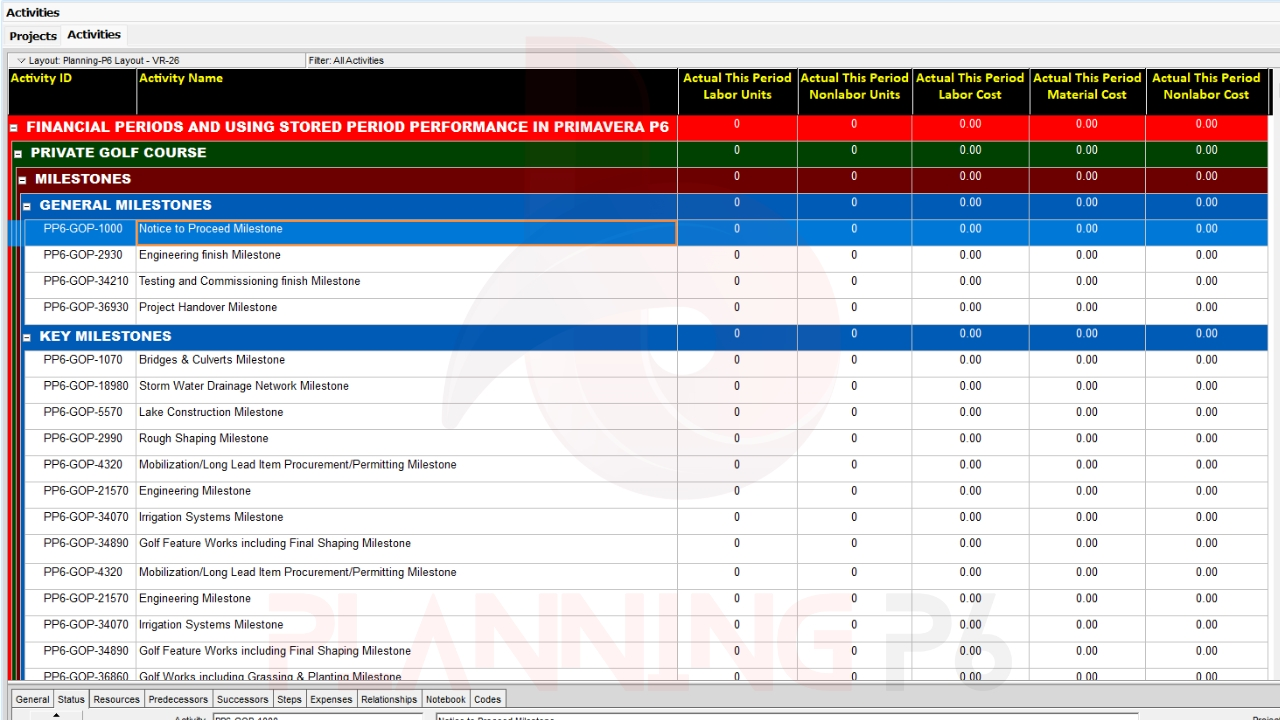
- Go to the Activities window.
- Right-click the column header → Columns > Customize.
- Expand Earned Value or Resource fields.
- Add columns like:
- Actual Units This Period
- Actual Cost This Period
- Earned Value This Period
These fields will now show your stored performance for each closed financial period.
Example:
If you stored Feb-2025, that month’s actual units will appear under “Actual Units This Period.”
After March progress is stored, the March values will display separately, creating a historical trend.
Step 7: Use Time-Distributed Layouts:
To visualize trends:
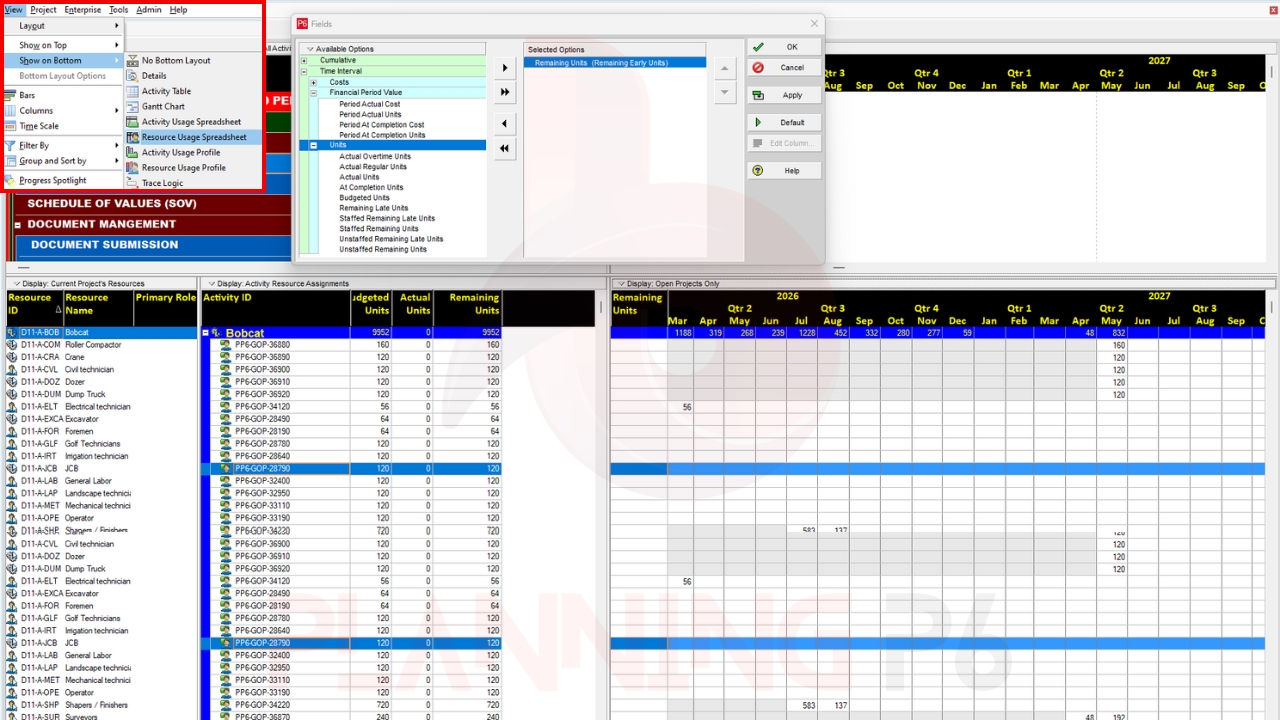
- Go to View > Show on Bottom Layout → select Resource Usage Spreadsheet.
- Display columns such as Budgeted Units, Actual Units, and Remaining Units.
- Each column shows data broken down by your stored financial periods.
This view allows you to generate time-phased performance charts, ideal for cost or resource analysis.
Step 8: Reporting Stored Period Performance:
You can report stored period data in two ways:
A. Tabular Reports:
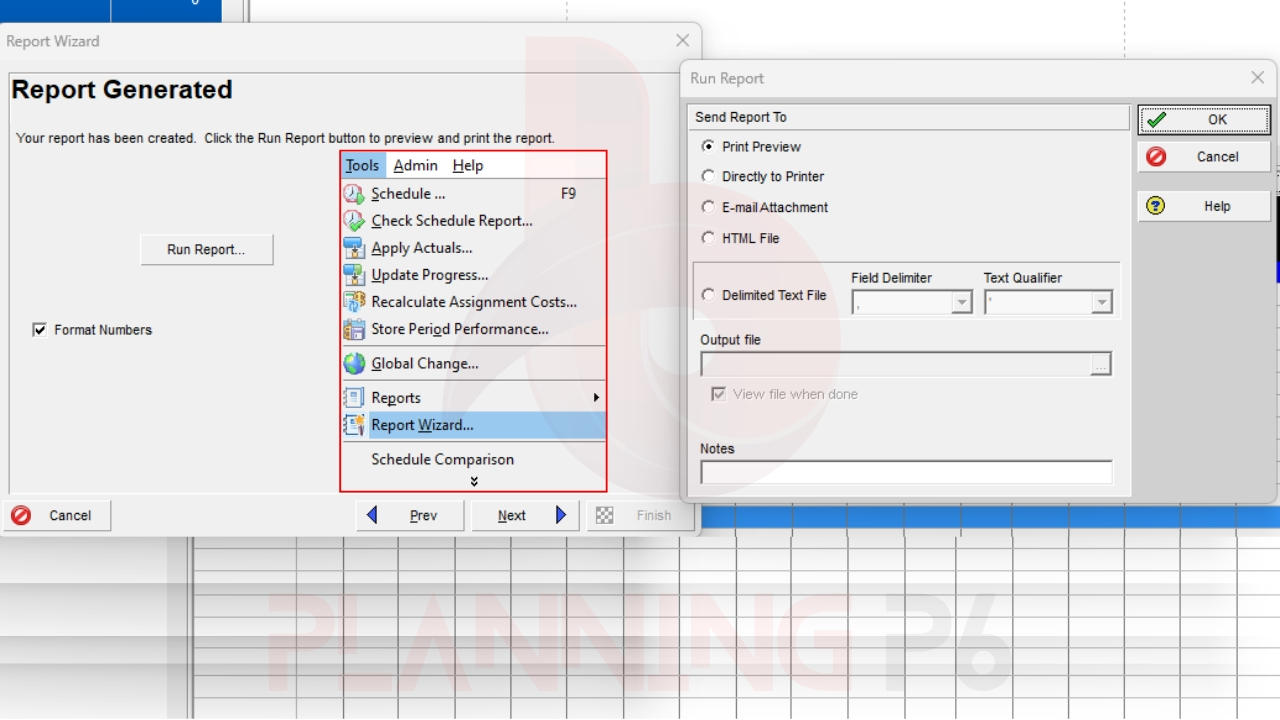
- Go to Tools > Reports > Reports Wizard.
- Select Activities as the report type.
- Add fields like Activity ID, Activity Name, Actual Units This Period, Earned Value This Period.
- Filter by specific periods if required.
B. Spreadsheet Export:
- Go to File > Export > Spreadsheet (XLSX).
- Select Activities with Financial Period Data.
- Open in Excel to generate graphs or pivot charts.
Always export after each monthly update to keep a record of raw period data outside P6 for QA/QC.
Step 9: Revising Stored Data:
Stored data can’t be overwritten directly, this is intentional to preserve integrity.
If you notice incorrect values due to late updates, you must delete the period data and re-store it:
- Go to Admin > Financial Periods.
- Select the wrong period.
- Click Delete Stored Data (only if necessary).
- Reopen your project and repeat the Store Period Performance process.
Use caution — deleting period data removes all stored actuals for that month across all projects.
Step 10: Using Stored Periods for Curves and Dashboards:
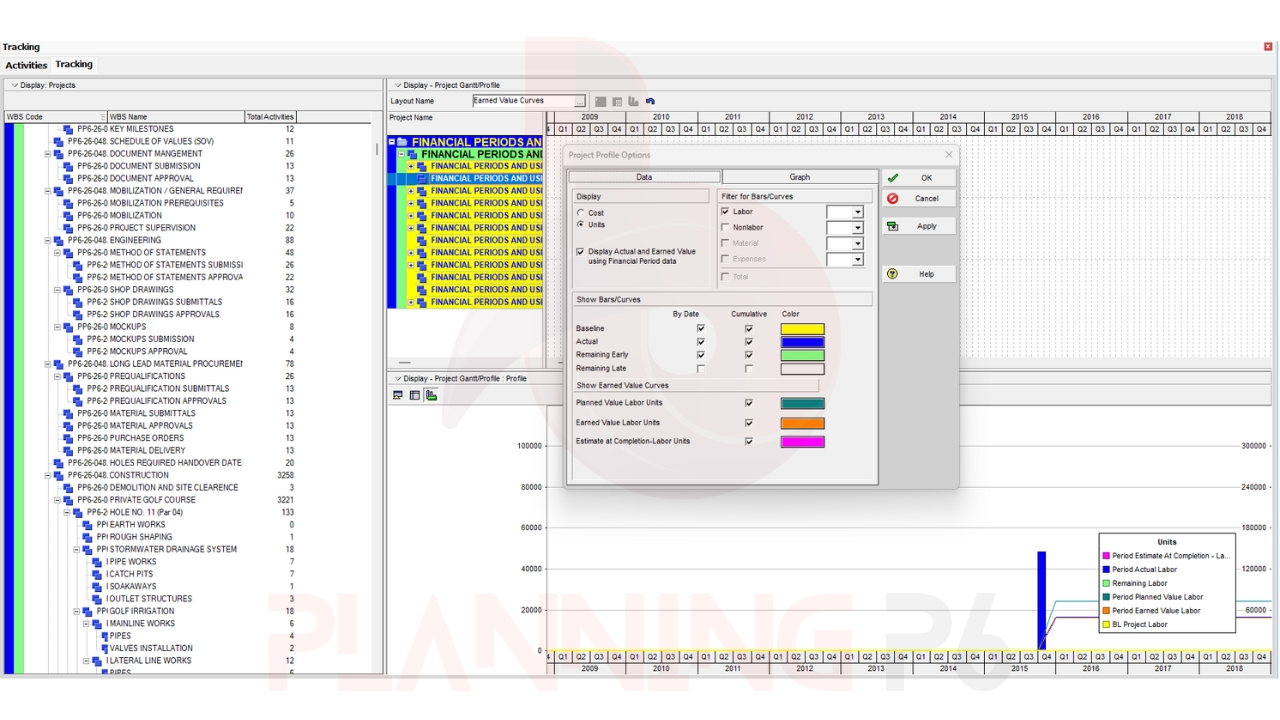
In Tracking Layouts, stored period data powers your S-Curves and Performance Charts.
- Switch to Tracking Layout.
- Enable the Cumulative Actual Units and Cumulative Earned Value curves.
- Each curve automatically references your stored financial periods for historical accuracy.
This creates a professional visual report showing monthly progress trends across the project lifecycle.
Checklist (Execution Summary):
- Review calendar and financial period setup.
- Complete all progress and actuals before closing the month.
- Use Tools > Store Period Performance before starting a new month.
- Add Actuals This Period columns to verify stored data.
- Export reports for archival and comparison.
- Avoid modifying stored data unless absolutely required.
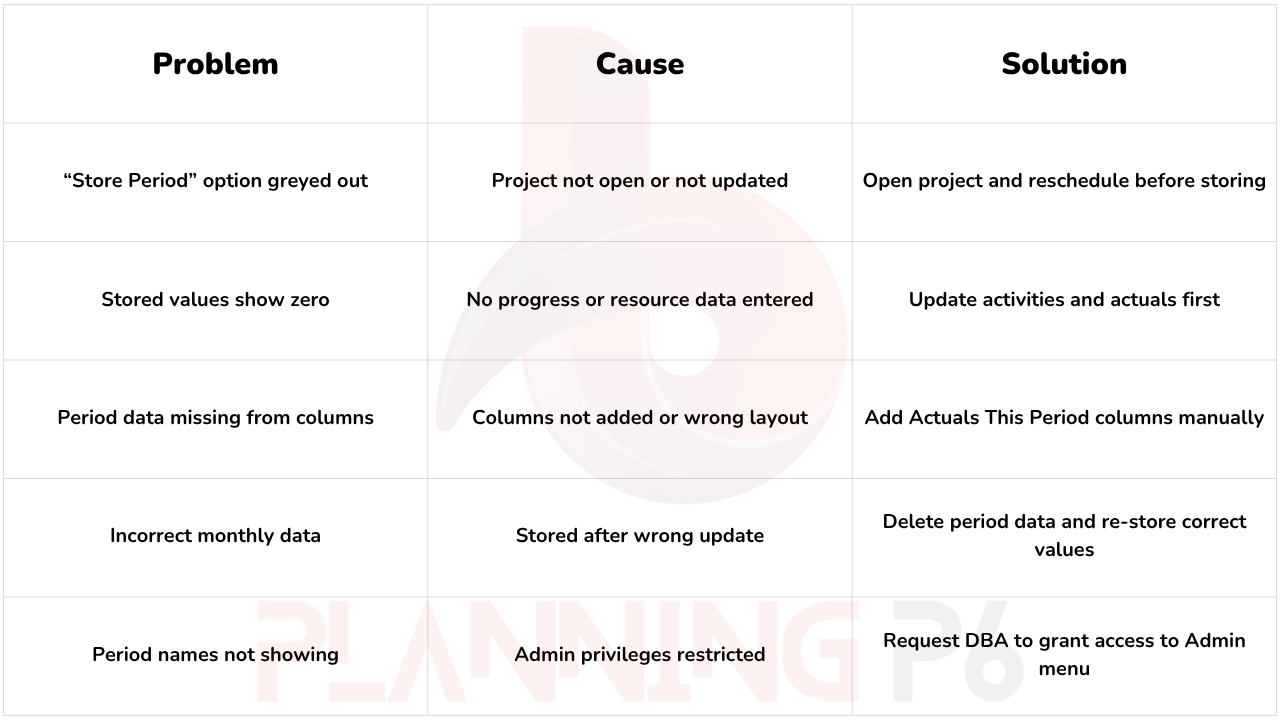
Troubleshooting (Common Problems):
Pro Tips & Best Practices:
- Always store performance immediately after month-end updates to avoid overwriting.
- Maintain consistent naming conventions for periods (e.g., Jan-2025, Feb-2025).
- Include stored period fields in activity layouts for quick comparison.
- Use Tracking Layouts to visually compare month-to-month progress.
- Export period data regularly for backup and QA documentation.
- Combine this with Earned Value Analysis (EVA) for full cost-performance insight.
- Lock database user rights, only authorized planners should store periods.
FAQ (8 Questions):
- Why use Financial Periods in Primavera P6?
To preserve historical performance data for accurate monthly reporting. - Can I edit stored period data directly?
No. You must delete and re-store the data after correcting actuals. - Does it work in P6 EPPM (web version)?
Yes, but stored performance is managed via different menu paths. - Is storing periods mandatory for progress updates?
Not mandatory but highly recommended for controlled reporting cycles. - Can stored data be exported to Excel?
Yes, through File > Export > Spreadsheet (XLSX). - Does stored performance affect project dates?
No, it only records historical actuals — scheduling logic stays the same. - How often should I store period performance?
Typically monthly, or weekly for fast-track projects. - Can I view stored data by WBS or Resource?
Yes. Use group and sort options in Activity Layouts or Resource Usage Profiles.
Glossary (Short Reference):
- Financial Period: Defined time frame (month/week) for storing progress.
- Stored Period Performance: Locked record of actuals for that period.
- Earned Value: Budgeted value of completed work.
- F9: Shortcut to reschedule and update calculations.
- Resource Usage Spreadsheet: Time-distributed view of costs or units.
- EPPM: Web version of Primavera P6.
- Baseline: Approved project plan used for comparison.
- Float: Available delay without affecting completion.
Conclusion:
Using Financial Periods in Primavera P6 is essential for professional monthly reporting.
It allows planners and project control engineers to lock past progress, compare trends, and prepare reliable reports that meet client and audit requirements.
By mastering Stored Period Performance, you gain the ability to analyze cumulative progress, resource trends, and earned value data over time — making your reports consistent and trustworthy.
Planning P6 Blogs & Posts:
Planning P6 Tutorials:
Financial Periods and Using Stored Period Performance Primavera P6 | How to use Financial Periods P6
How to use Tracking for performing schedule cost & resource analysis display multiple project in #p6

How to do Advanced Reporting, Effective Analysis & Comparison in Primavera P6 for Multiple Projects

Primavera P6 Advanced Filtering, Grouping, & Sorting in Resource Assignment & Management Techniques

PLAYLISTS