
Description:
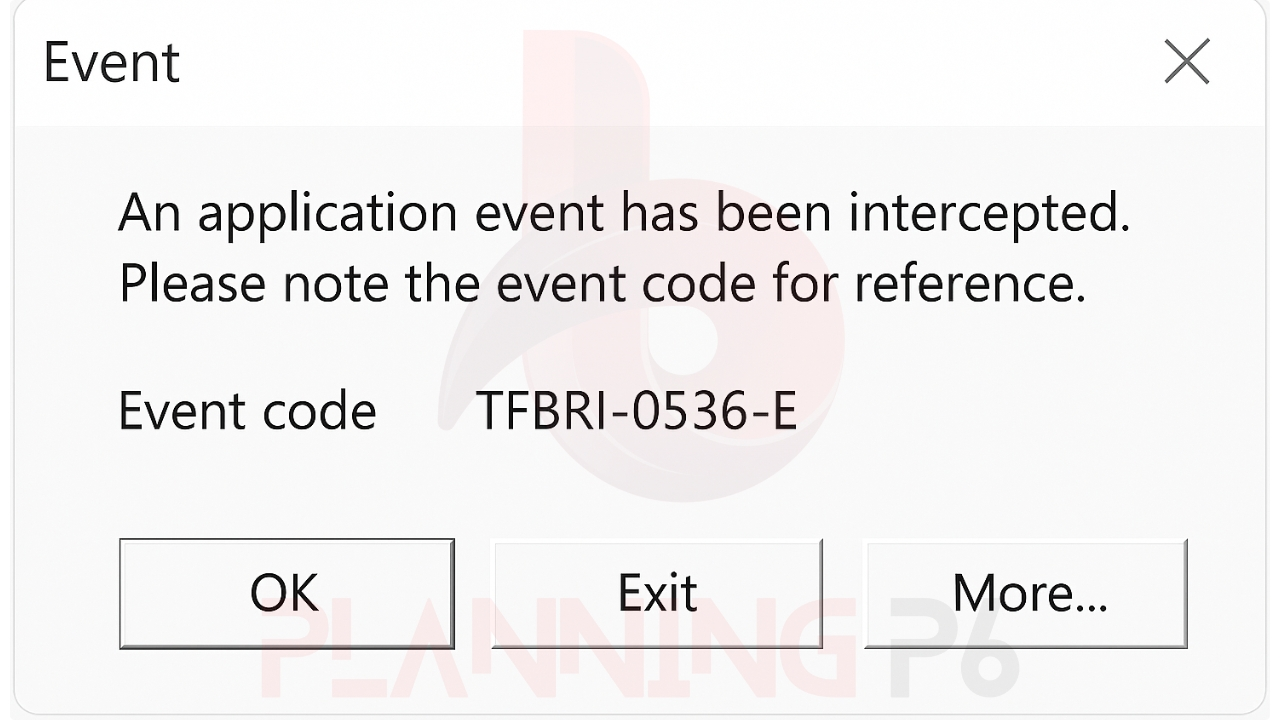
When Primavera P6 suddenly shows “An Application Event Has Been Intercepted (TFBRI-0536-E)”, it can freeze your session or close the software entirely.
This error means something inside P6 broke, most often a corrupted layout or local preference file. (The good news: it’s easy to fix in a few minutes.)
Quick Summary:
- The TFBRI-0536-E error usually means a layout or view file is corrupted.
- Sometimes it’s caused by cache damage or database connection problems.
- Fix it by resetting layouts, clearing the local cache, and testing your database connection.
- Always back up layouts before editing.
- Update to the latest P6 patch to stop it from returning.
Why This Error Happens:
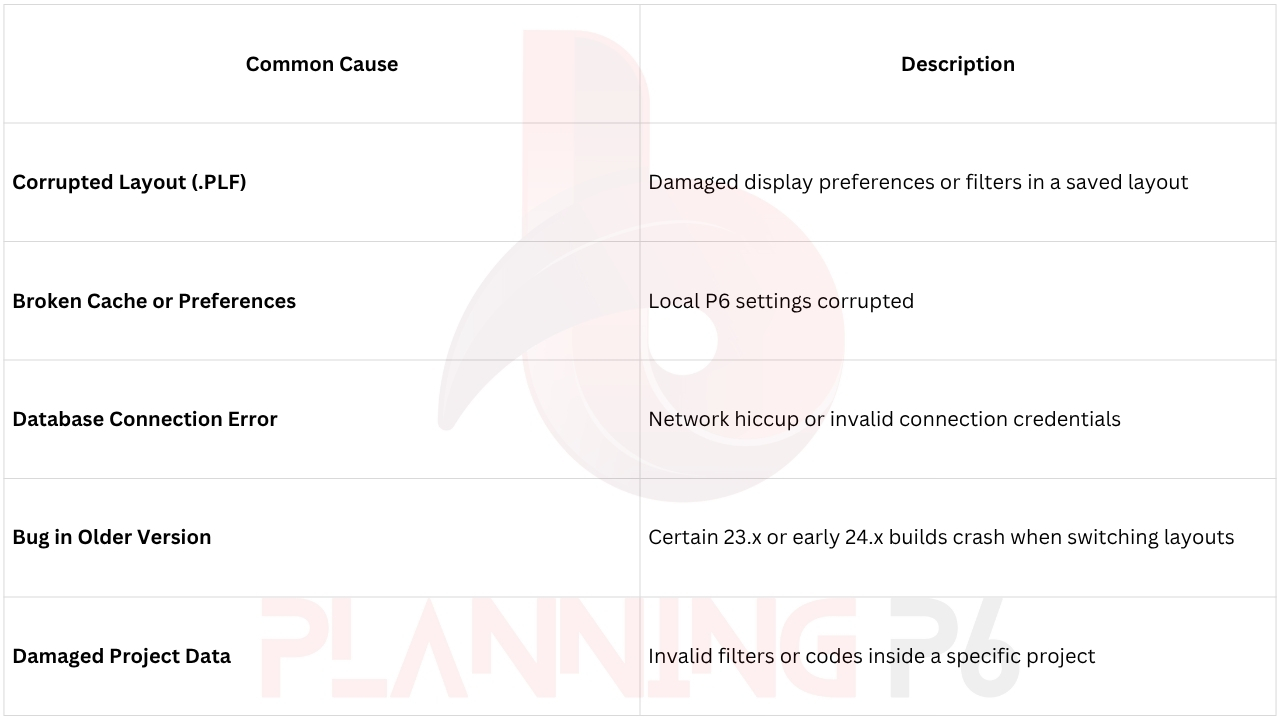
Primavera P6 throws the “Application Event Intercepted” message when it can’t finish an internal command. It’s most often related to one of these:
Quick Fix Overview:
- Reset layout – open a clean or default layout.
- Clear local cache and preferences.
- Test database connection.
- Re-import project (XER) if still crashing.
- Update to latest P6 patch.
Step-by-Step Guide to Solve TFBRI-0536-E:
Step 1: Reset Layout:
- Open Primavera P6.
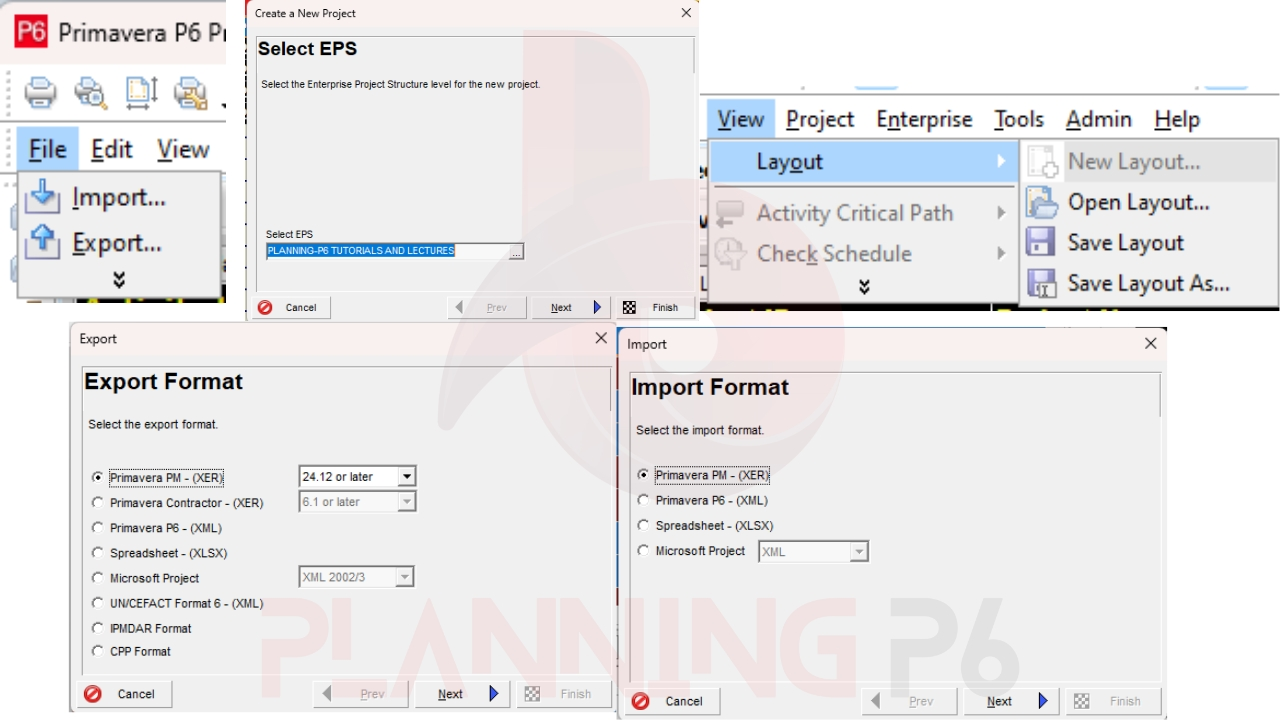
- If it opens to a blank screen, press and hold Shift while double-clicking the project. This skips automatic layout loading.
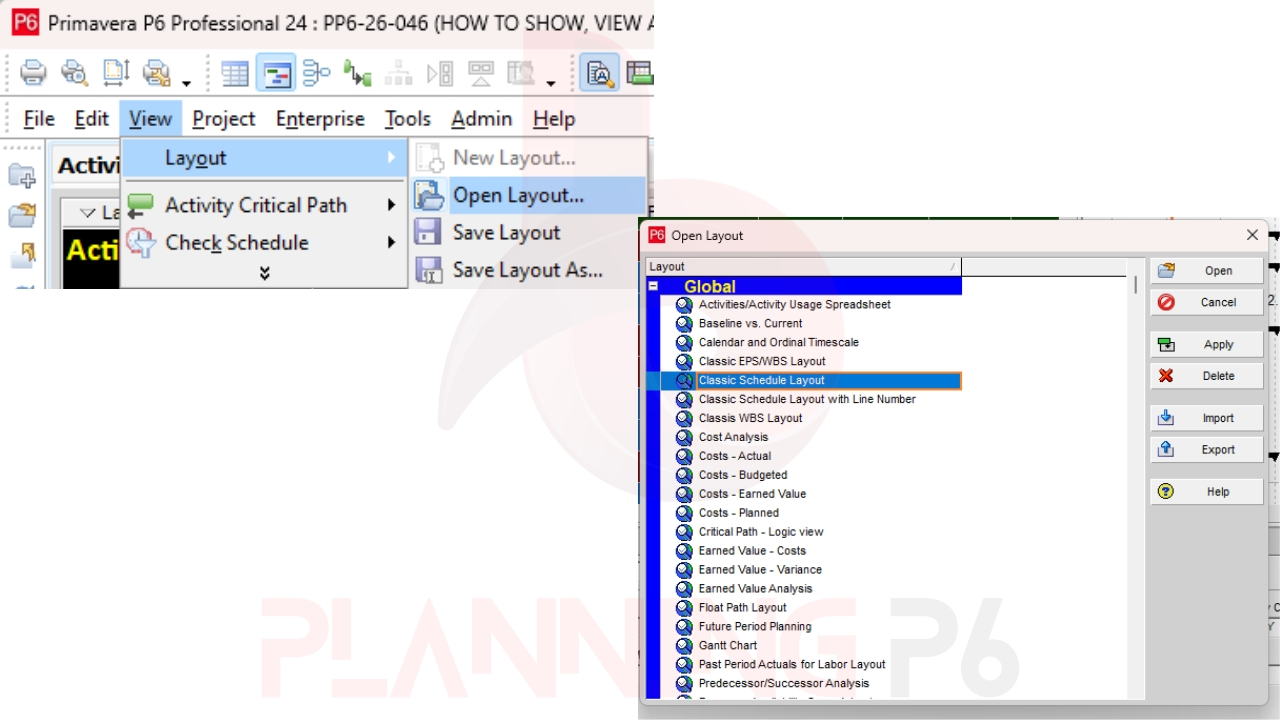
- Go to View > Layout > Open.
- Choose a default layout, e.g., Classic Schedule Layout.
- If it loads successfully, click View > Layout > Save As, and save under a new name.
- Delete the old corrupted layout.
Step 2: Clear Local Cache and Preferences:
- Close Primavera P6.
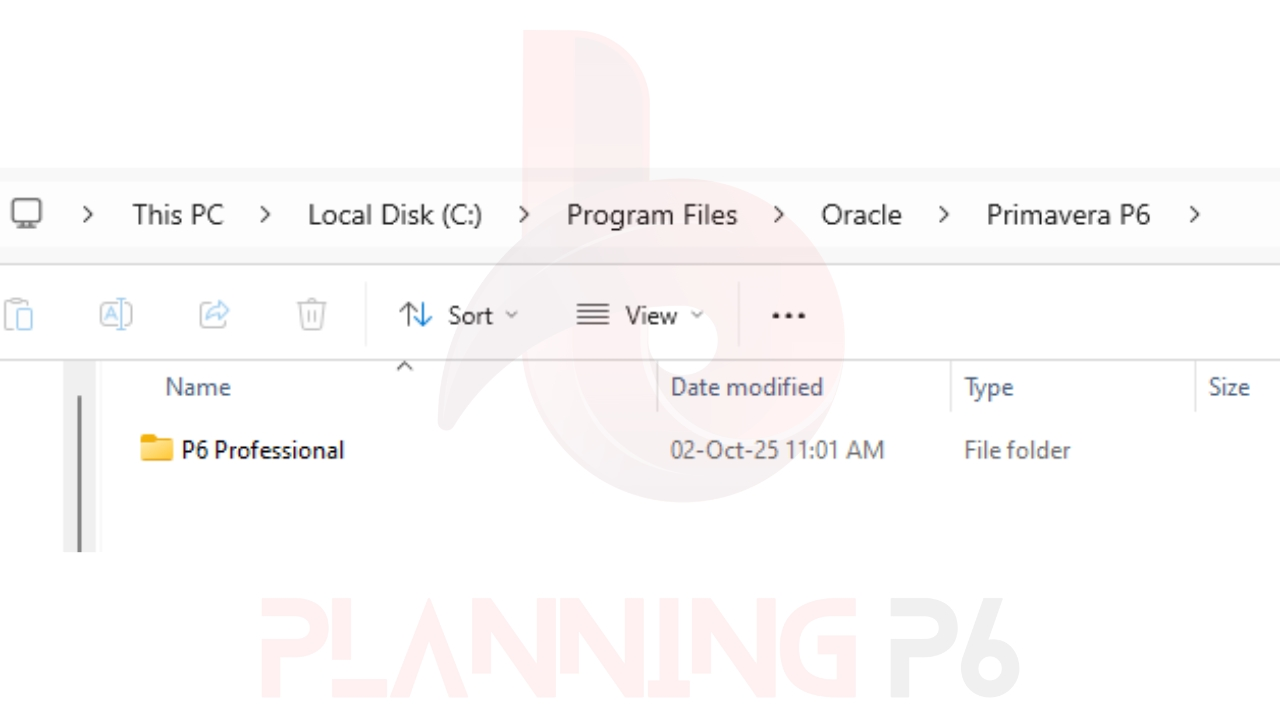
- Go to this folder path:
- C:\Program Files\Oracle\Primavera P6
- Rename the folder to Primavera P6_old.
- Restart P6 – it rebuilds new preference files automatically.
Step 3: Test Database Connection:
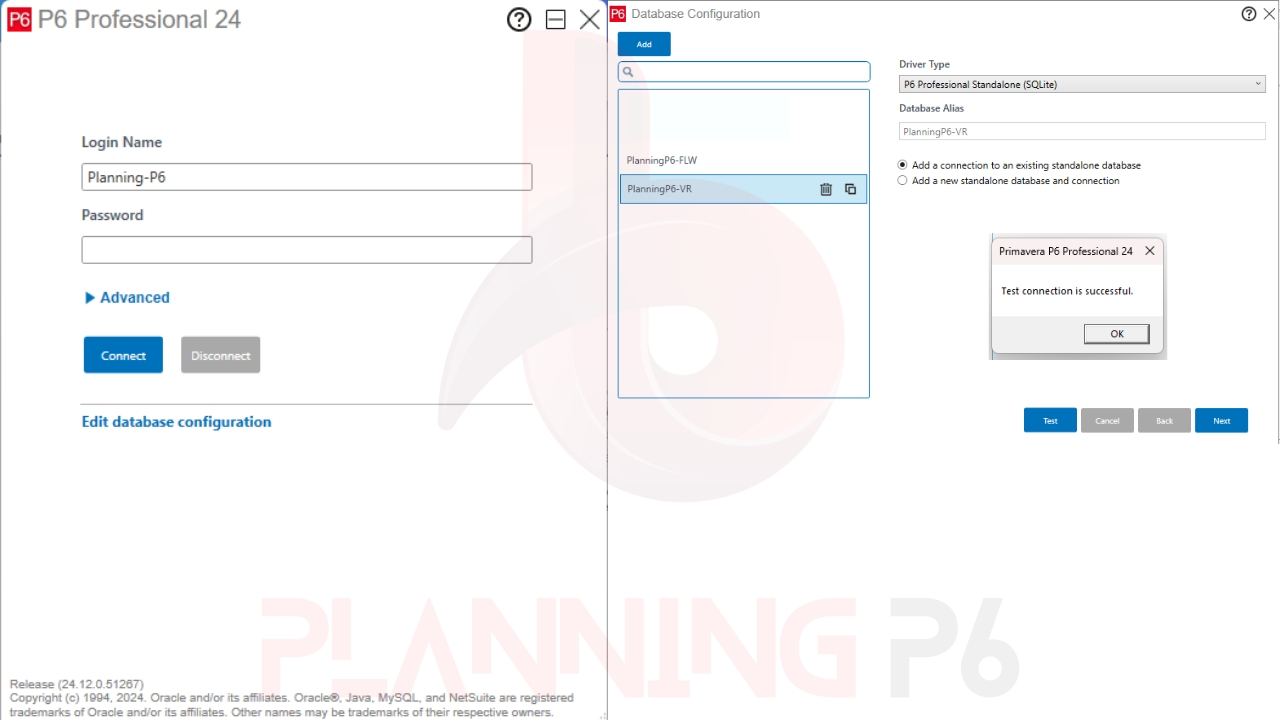
If you use a shared or SQL database:
- Close P6.
- Run Database Configuration from the Start menu.
- Click Next > Existing Database > Configure.
- Test connection. It should say Connection Successful.
- If not, re-enter your username, password, and alias.
Step 4: Re-Create the Problematic Project (if needed):
If the crash occurs only on one project:
- Export that project as XER (File > Export > Primavera XER).
- Create a new project.
- Import the exported XER into the new one.
- Open it with a clean layout.
This usually strips away hidden corrupted layout data.
Step 5: Apply Latest Patch or Update:
- Visit PlanningP6 Support, Oracle Support or your IT team.
- Download the latest P6 version 24.12 or higher.
- Install patch updates (they fix known UI bugs like TFBRI-0536-E).

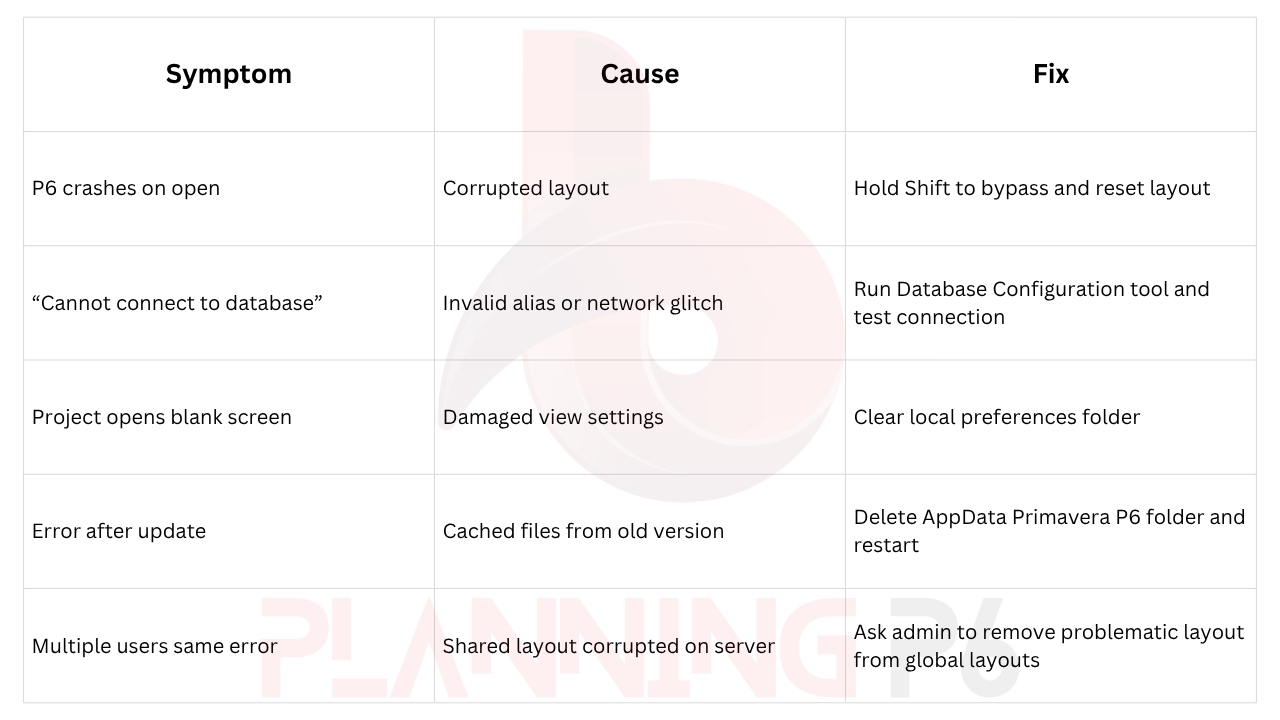
Troubleshooting:
Pro Tips:
- Save layouts under personal user layouts (not global).
- Keep one clean default layout for testing.
- Periodically export your project to XER for backup.
- Use “Save As” instead of overwriting layouts.
- Always apply Oracle’s latest patch bundle.
FAQ:
1. What is error TFBRI-0536-E in Primavera P6?
It means the program hit an internal exception – usually due to a corrupted layout or cache file.
2. Will I lose data when this happens?
No project data is lost; only display files are corrupted. Your database remains safe.
3. Is this a virus or malware issue?
No. It’s a software bug or data corruption problem, not security-related.
4. Can I recover my old layout?
If you exported layouts (.PLF), re-import them. Otherwise, you must rebuild.
5. Does this affect standalone SQLite installations?
Yes, though less often. Cache corruption can still trigger it.
6. How can I prevent this in future?
Update P6, keep a clean layout backup, and avoid overwriting views.
7. What if all users see the error?
Then a global layout on the server is corrupted. Ask your DBA to delete it.
8. Is there a log file for this error?
Yes. Find it in C:\Contributors\<User>\AppData\Local\Temp\P6ErrorLogs.
Conclusion:
The TFBRI-0536-E error looks alarming, but it’s easy to fix once you know where to look.
Start with layout reset, clear cache, and test database. Keep your layouts organized and updated to avoid repeat issues. With these habits, Primavera P6 runs smoothly and your projects stay on track.
PLANNING P6 TUTORIALS
How to create and format S-Curve in P6 | Activity Usage Profile in P6 | Planning P6 | Primavera P6 |
How To Prepare Delay Analysis by Using Impacted as Planned Technique | Impacted as Planned method P6

How to Create & Assign Calendar in PrimaveraP6 | Planning-P6 | Types of calendars in primavera P6 |

How to Change Language in primavera p6 | Planning P6 | Language Setting in P6 | Tips and Tricks |

How to do Print Setup In Primavera P6 | How to Print Multiple Layouts in P6 | Printing PDF from #P6

PLAYLISTS